Icon Proximity Card, aka RFID Badges, 25 per pack
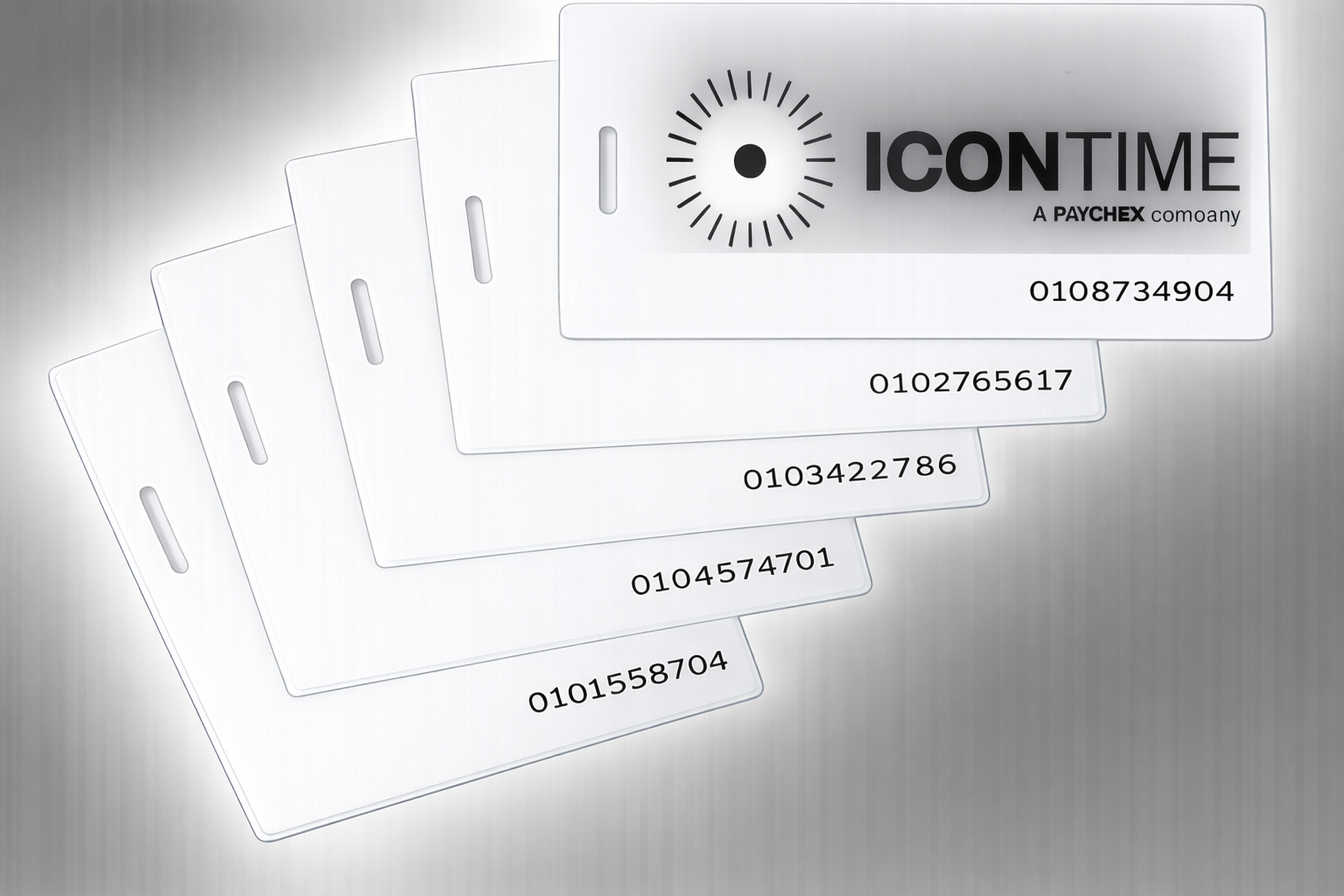
Slotted Proximity Badge Cards for Icon Systems
Durable slotted proximity cards for professional time clock and access systems.
Description
These slotted proximity badge cards are designed for use with select Icon Time Systems and Compumatic electronic time clocks. A flat slot is punched through the narrow end of the card, allowing easy attachment to lanyards, clips, or badge reels.
They are manufactured specifically for Icon TIMEVUE, SB100, and TotalPass terminals, as well as Compumatic / Computime XLS electronic time clocks. Each card contains an embedded electronic chip and antenna sealed inside the card body for reliable proximity reading.
Built for Daily Use
These proximity cards are designed to withstand real-world employee use. They are impervious to heat, cold, magnetism, and laundry machines, making them suitable for industrial, commercial, and institutional environments.
Employees can comfortably carry these cards in pockets or wallets, hang them on lanyards, or store them in a convenient wall-mounted card rack.
Compatibility
- Icon TIMEVUE terminals
- Icon SB100 proximity systems
- Icon TotalPass terminals
- Compumatic / Computime XLS electronic time clocks
Card Features
| Card Type |
Proximity badge card |
| Slot |
Flat slot punched on narrow end |
| Durability |
Resists heat, cold, magnetism, and washing |
| Carrying Options |
Lanyard, wallet, pocket, or wall card rack |
| Warranty |
Lifetime guarantee |
Important Note
These cards are built to last under normal workplace conditions. While extremely durable, they are not designed to withstand physical abuse from tools such as hammers, saws, or cutting blades.
How to activate RFID KeyFobs and Icon RFID Badges.
There is an easy way to check if the keyfobs and badges work: Just present them to the clock. A "good" one will beep and say "Badge Not Assigned." That indicates it is being read - the badge works. It is just not assigned to anyone.
Step-by-step procedure to assign a badge/KeyFob:
First, they must be installed in the clock via the software.
Print or write out a list of the employee ID numbers and names.
You must enter the full 4,5,6,7,8 or 9 digit employee clock ID NUMBER. Alphabets don't work. Employee one, with a 4 digit number, is 0 0 0 1 not "1".
At the clock: Press the lock button and enter your management access code (00 00 00 00 or whatever you have changed it to)
Press the down arrow 4 times, see "Assign Badges" Press the ENTER button on the left.
See Enter Emp PIN. Type in the full employee clock PIN
See Wave Badge on the display. Present the KeyFob. They work within 3/4 of an inch, anywhere above the keypad.
**** We just tell people to touch them so that they don't wave them 36" away.
Enter the next employee's number. It takes about 4 seconds to cycle through to the next one (the delay).
When done, just hit Clear a couple times, or walk away. The clock automatically exits Management Mode in about 30 to 60 seconds.